
Tesla cars, be it Model S, X, 3, or Y, are beyond smart, almost intelligent. However, Tesla’s bouquet of technological features can overwhelm many fans. Most people need a while to become familiar with the scores of evolving attributes, including keys, fobs, and key cards. So how can you unlock a Tesla?
Tesla officially offers four ways to unlock your car: keys, fobs, key cards, and smartphone app. Unofficially, you may try Tesla key card or fob alternatives like rings or bracelets. All methods have pros and cons, and you can use every mechanism for your convenience.
The latest Tesla models don’t have a key fob unless you purchase it separately. The default unlocking methods are the key card and your smartphone, either through the app or Bluetooth. This guide unlocks all the technicalities you should know about Tesla’s keys, fobs, and key cards.
Tesla uses four technologies to unlock and lock its Models 3 and Y. The latest versions of the earlier flagship Models X and S can also support these mechanisms.
Let’s go over each one of these methods below.
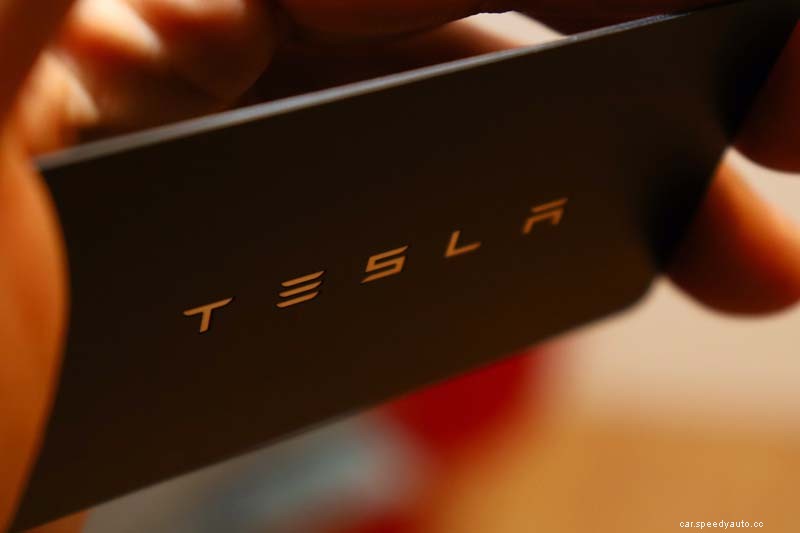
The key card is Tesla’s primary and default access mechanism. Tesla introduced the short-range radio-frequency identification sensor in Model 3, located just below the side camera next to the front door. The key card has a chip and antenna inside.
Place or tap the key card over the sensor in the frame to unlock and lock your Tesla. You’ll hear two honks when you unlock, and one after you lock the car. A pair of key cards is included in the package when you purchase a Tesla. You must add the second key card.
Tesla’s official smartphone app provides remote access to your car, allows you to lock and unlock your car, and offers several other controls. After activating your account, which may take around 48 hours, you can start using the remote access and other controlling features.
You need a smartphone app, an internet connection, and an activated Tesla account to convert your phone into a Bluetooth key. Plus, you need to follow the same process for every new Tesla app account for family and friends.
You can use your phone as a Tesla key. Turn on the phone’s Bluetooth and pair it with the car. Before that, you need to download the smartphone app and get your username and password registered with Tesla to activate your account and add the phone.
Once paired, the phone serves as a standalone key, independent of the Tesla app, the key card, and key fobs—the latter only when or if you purchase. Tesla allows you to add up to 19 keys, including phones, cards, and fobs. Hence, you can convert several phones into Tesla keys.
The most noteworthy advantage of using a phone key is convenience. You don’t have to place the Tesla key card on the sensor to unlock or lock. The phone’s proximity locks and unlocks the car, so you will hear a single or double honk as you walk towards or away from the Tesla.
Tesla key fobs are an official aftermarket accessory. You can buy a key fob from Tesla for around $150 to $175. Unlike key cards, you don’t get a pair of fobs. You can sync a key fob in the same way you would add a new phone or card.
In addition to locking and unlocking at close proximity, Tesla key fobs can also operate the trunks at the back and front. Double-click a Tesla key fob to unlock and single-click to lock the door and the rear or front trunk. You can add a maximum of four fobs among the 19 keys.
We wrote a full article and discussed the question if EV’s Have and Need Keys. Have a look to find some valuable info!
Tesla key and fob alternatives that are compatible with the same short-range radio-frequency technology as the official cards have a chip and antenna. You can buy an alternative or make your own using the key card components.
The Tesla key fob alternatives are third-party accessories. Thus, the embedded chips and other technologies may or may not be compatible with your Tesla, which could be due to a specific issue with a model or the tech. Also, the accessories function differently from the Tesla key and fobs..
You can pair the alternatives in the same way you add your phone and a Tesla key fob or card. The device will appear as an unknown key, and you can save it using a preferred name.
Here are a few readymade Tesla key fob alternatives on Amazon.com:
| Products Attributes | CNICK Tesla Key Ring | CNICK Tesla Key Bracelet | COLMO Model 3 Smart Ring | KIMISS Car Smart Key |
| Form Factor | Ring | Bracelet | Ring | Ring |
| Material | Wood | Wood and Stones | Ceramic | Carbon Fiber |
| Size | US: 6 to 10, and 13 | 16cm to 21cm (6.3in to 8.3in) | 7mm and 9mm (0.27in and 0.35in) | US: 6 to 12 |
| Colors | 3 | 4 | 4 & Custom | Black & Red |
| Tesla Models | 3 and Y | 3 and Y | 3 | 3, X, S, Y |
The Tesla key card is essentially a plastic case for a copper-wire antenna and radio-frequency identification chip. You can remove the plastic, extract the chip and antenna, bend, or reshape it while ensuring it still works to fit into any form factor and make a DIY key.
Here’s an excellent video of taking a Tesla key card apart and testing the chip & antenna:
You can drive a Tesla without a key card by using your paired phone, access the system through the official app, or buy a fob from Tesla. The key card and fob alternatives, such as rings or bracelets, are an option. However, verify if the third-party solutions can work seamlessly with your Tesla.
You don’t need a key card to drive a Tesla. If you’re using any other paired keys, such as phone, app, or fob, you can unlock and lock your car, thus powering the system on and off, respectively. Once inside, press on the brake, then put the car into gear and drive.
The only instances when you’ll need your key card are if you have to pair a new device, remove an existing fob, add another phone, don’t have any phone key, or manage different systems synced with the Tesla. Also, you can set a pin to drive for additional security.
Pin to Drive is a security feature to prevent unauthorized access to the system. Unlocking a Tesla gives you access to the control panel. A key card is required again only when you authorize significant changes or the system powers off in the absence of a paired phone or fob.
Here’s a quick 2-minute video showing how you can set a pin to drive on Tesla Model 3:
Your first key card should be activated when your Tesla is delivered or at the service center. Subsequently, you can use the first authenticated and activated key card to add all other keys, be it another card, your and others’ phones, a Tesla fob, or any alternative you may choose.
Take these steps to add and activate a Tesla key card:
You can use your phone as a Tesla key if it’s paired with the system through Bluetooth. Download the Tesla app on the phone, log in using registered details, add the device through the touchscreen Menu and Locks, and activate it using an authenticated key card.
The same process of adding and activating a key card applies to pairing a phone, Tesla key fob, or alternatives. Adding a phone as a key requires authentication through the Tesla app in addition to key card authorization. Add key fobs by scanning them in the same way as cards.
Here’s a stepwise video tutorial on adding and activating Tesla key cards and phones:
You can start a Tesla without a key using your phone, a smartphone app, and a fob. The primary key card is required during setup, but you can use your smartphones for passive lock and unlock. Also, you can use Tesla’s app for instant access and 19 keys, including several phones, cards, and fobs.
Every authorized method serves as a standalone access mechanism. You don’t need to rely on any particular key as all the 19 keys coexist and can function independently. Let us consider a few scenarios to elaborate.
You can drive a Tesla without the key by accessing the system through the app. Also, you can start driving using your phone key, a card and fob alternative, or if the car is unlocked. Set a Pin-to-Drive if you intend to keep your Tesla unlocked and unattended.
Would you like to know How To Lock Your Tesla While Charging? Check out this helpful article that we wrote.
To keep Tesla unlocked, disable the walk-away auto-locking feature or unpair your phone key and passive fob. Key cards and fobs not facilitating passive entry won’t auto-lock your Tesla. Also, you may save the GPS location of your house, go to Locks, and choose Exclude Home.
You can enable or disable auto-locking features for every driver profile. Hence, using a phone as your key doesn’t necessarily compel you to use the passive entry and walk-away locking.
Here’s a video detailing how you can change the auto-lock and related settings:
You must be precise with the GPS location if you choose to Exclude Home through Locks for your Tesla to stay unlocked in the garage or driveway.
The navigation system can be somewhat lenient with the range or precise coverage area. Your car may inadvertently stay unlocked where you don’t want it to be readily accessible.
It isn’t clear how much linear distance or radius Tesla considers as the proximity for your home’s location to execute this function. Some owners reported glitches when their Teslas remained unlocked even when they were several hundred meters away from their house.
