
As electric cars become an increasingly common mode of transportation, a variety of vehicle chargers have come onto the market, including AeroVironment chargers. But users that rely on these chargers may occasionally experience technical issues. So how would I know if the charger is not working?
AeroVironment chargers may occasionally experience mechanical or connection problems. One of the best indicators of internal errors in the red light located on the front panel. You can use this light to determine the cause of your charger errors, allowing you to choose suitable solutions.
This guide will explore the most common AeroVironment problems and their potential solutions.
The POWER PRESENT indicator is the topmost green light located on the lefthand side of the charging station front panel. If it fails to illuminate, the most likely culprit is a lack of power.
Try resetting the power supply connection by pushing the circuit breaker switch connected to the charging station to the “OFF” position. Count to 10 and push the switch back to the “ON” position.
If the POWER PRESENT light remains off, turn the breaker switch back to the “OFF” position. After that, contact AeroVironment customer service.
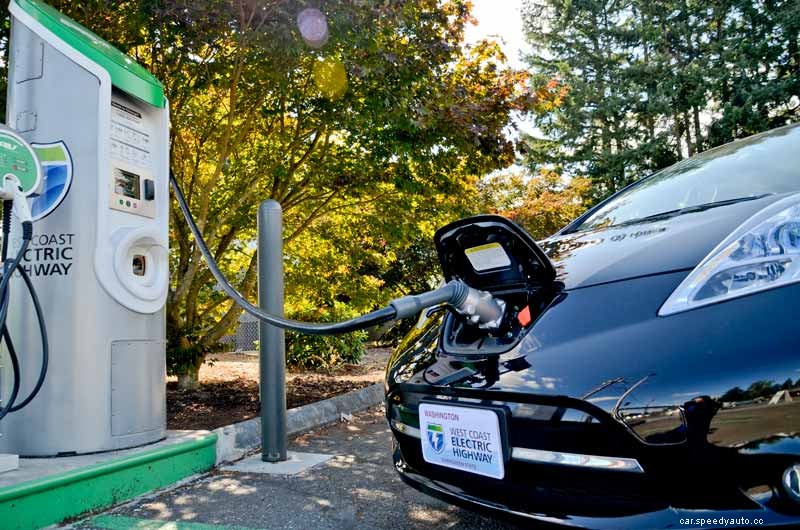
If the POWER PRESENT indicator is illuminated but the READY TO CHARGE light fails to light up, the issue could be a faulty or variable power supply. However, the charging station might also be experiencing internal mechanical problems.
When the READY TO CHARGE light fails to illuminate, the first thing you’ll want to try is turning off the charging station power supply, then turning it back on again. In the event that this action doesn’t fix the issue, the next best solution is to reach out to the AeroVironment customer service team.
Let’s say that the POWER PRESENT and READY TO CHARGE indicator lights are illuminated and the charging cable is attached to your car’s chargepoint. Is the green VEHICLE CONNECTED light failing to turn on?
If so, the charging cable might not be firmly connected to the vehicle chargepoint. You might also be experiencing problems related to a faulty charging cable or damaged chargepoint.
Fixing this issue is straightforward. First, try unplugging the charging cable from your car’s chargepoint and reattaching it, ensuring that the cable firmly latches onto the input.
Is there still no VEHICLE CONNECTED light? If so, you may need to replace the charging cable. That said, a damaged chargepoint can also cause this problem, so you may need to hire a mechanic to inspect your EV’s chargepoint components.
We’ve written a Guide about Aerovironment Charger Installations 2022. Take a look! It’s very informative.
When the red TROUBLE light is illuminated, but it isn’t flashing or blinking, the charging dock is to blame. This issue might stem from a power supply failure or an internal mechanical error.
It’s also crucial to note that the AeroVironment charging dock is equipped with several safety features that can contribute to this warning light. For example, it has a ground-fault circuit interrupter (GFCI), which is an internal circuit breaker that disables the incoming power supply during sudden power surges.
If you spot this light on your AeroVironment charging station’s front panel, you’ll want to take extra safety precautions while troubleshooting a solution. Wearing a pair of insulating rubber gloves and boots can prevent you from receiving an electrical shock while fixing this issue.
After donning your insulating safety gear, you’ll want to locate the circuit breaker switch that supplies power to the charging station. Push this switch to the “OFF” position and wait several seconds before switching it back to the “ON” position.
If the unblinking red light illuminates again, immediately push the applicable circuit breaker switch to the “OFF” position once more, and keep it turned off. At this point, you’ll need to contact the AeroVironment customer service team for assistance.
A blinking red TROUBLE indicator light can indicate a wide variety of issues, depending on how quickly it’s blinking. For example, a rapidly blinking red light indicates a severe internal system error.
Unfortunately, the only solution to this particular type of flashing light is contacting the AeroVironment customer service team. However, if the TROUBLE indicator light is blinking twice, turning off, then blinking twice once more, you’re likely dealing with a charger connection problem.
If it blinks three times in a similar manner, there’s probably a power supply issue. Four blinks is a signal that that charger is overheating. Naturally, the best solution to this issue depends on the number of blinks.
If the TROUBLE light is blinking rapidly, you’ll want to turn the charging station off by pressing the large red STOP button located on the righthand side of the front panel. If this light continues to flash, you’ll want to turn off the charger’s power supply, remove the charger cable from your vehicle’s input, and contact AeroVironment customer service immediately.
If the red TROUBLE light stops blinking rapidly after your press the STOP button, you can press the bright green START button to power the charger back on.
At this point, you shouldn’t see any red lights.
When the TROUBLE indicator is blinking twice or three times, you’ll need to turn off the power supply via the circuit breaker switch, then turn the switch back to the “ON” position. If this action doesn’t fix the blinking light, your best bet is to contact customer service.
A TROUBLE light that blinks four times is relatively easy to fix.
To stop this indicator light from flashing, you’ll want to ensure that your charging dock is in a shady, cool location. Remember, this light means that the charging dock is overheating, so keeping it cool is the best solution.
Understanding the indicators lights on an AeroVironment EV charger can feel overwhelming. After all, the front panel has five lights, some of which might illuminate simultaneously or not at all.
| Indicator Light | Pattern | What It Means | Potential Solutions |
| None | None | Power supply connection is faulty, incomplete charger dock connection, or a charger failure. | Turning the applicable circuit breaker switch off and on, unplugging the charger dock connection from the vehicle and plugging it back in, damaged charger dock, damaged vehicle charger input. |
| Red | Constant rapid blinking | A system error has occurred. | Contact AeroVironment customer support. |
| Red | Solid | The charging dock is experiencing an internal error. | Turn the applicable circuit breaker switch off and on, or contact AeroVironment customer support. |
| Red | Two blinks | There’s a problem with the charger’s connection to the vehicle. | Turn the applicable circuit breaker switch off and on, or contact AeroVironment customer support |
| Red | Three blinks | There’s a power supply issue. | Turn the applicable circuit breaker switch off and on, or contact AeroVironment customer support. |
| Red | Four blinks | The charging dock is overheating. | Place charging dock in a cool environment and reduce exposure to heat sources, contacting AeroVironment customer support. |
Would you like additional information about AeroVironment charger troubleshooting? If so, be sure to check out this related instructional video:
