
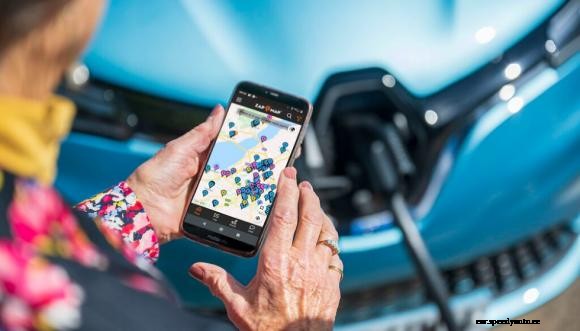
Welcome to ‘Five Zap-Map features you may not know’. This is the second of a series of articles we’re putting together to highlight some of the lesser-known features on the Zap-Map app – we hope you find them useful.
We’re creating these articles because our user community is a core part of what makes Zap-Map tick. We love getting feedback on areas for enhancement, but have occasionally been surprised by requests for functionality that’s already available on the app. In light of this, you’ll find below some lesser-known features on the app, with some short videos to help you out too.
You can see Part One here: Five things you might not know about the Zap-Map app.
If you have a favourite few charging locations that act as your ‘go-to’ options, you might want to consider bookmarking them in your Zap-Map app. It may be that these locations have particularly reliable charging devices, or simply that you use them on a regular basis.
Whatever your reasons, bookmarking charging locations on Zap-Map allows you to see only your bookmarked chargers on the map, as well as in List view. You can therefore easily see whether your favourite chargers are in use, out of service or available to use.
To bookmark a charge point, simply open the location in Zap-Map and select the grey bookmark symbol, in the corner of the location photo. Once selected, the bookmark will then show up as orange – and be added to your bookmarked chargers.
See how to bookmark chargers in the short video below.
Did you know that you can find charge points on Zap-Map that are free to use? Roughly 20% of charging devices in the UK don’t incur a cost to charge. They tend to be fast devices, often located at supermarkets or public car parks, perfect for a top-up charge while doing your weekly shop, for example.
To find free charge points on Zap-Map, open up Filters in the app and select ‘Payment’. Then select ‘Free to use’ and press ‘Apply’. Zap-Map will then display only those chargers that are free to use.
See how to filter for free EV charging points in the short video below.
You’ll most probably be familiar with the route planner on Zap-Map already. However, you may not be aware that you can select from one of three routing modes when planning your route. These are ‘Autoroute’, ‘Suggest chargers’ and ‘Show all chargers’.
If you’d like a greater choice of charging options from your route, you might want to select the ‘Show all chargers’ routing mode. This will display all chargers within five miles of your route, for you to select whichever you most prefer.
If you like, you can also tinker with the settings in ‘More options’. For example, you could increase (or decrease) the distance from your route that chargers will show up. They don’t have to be within five miles – you can choose!
See how to select ‘Show all chargers’ in the short video below.
You may or may not have noticed that some charging locations on Zap-Map display a five-star scale when you open them in the app. This is the User rating, and it will help to give you an indication of the reliability or usefulness of the charging location and the charging device(s) you’ll find there. Keep an eye out for it next time you’re choosing which charge point to use.
The User rating is visible to all Zap-Map users, regardless of whether you are using the free version of the app or have upgraded to Zap-Map Plus or Premium. However, if you’re using either Zap-Map Plus or Premium, you are also able to filter by User rating and so find charge points with a high rating – those with four stars or more, for example.
See where to find the user rating and how to filter by it in the video below.
Did you know there’s a free trial of Zap-Map Plus and Premium? It’s a great way to try it out and see whether you might want to upgrade.
Zap-Map Plus helps EV drivers plan quicker. Based on user feedback, Plus includes a number of new ways to locate suitable charge points via enhanced filter options. Zap-Map Premium helps EV drivers drive smarter. On top of all Zap-Map Plus’s enhanced features, Premium enables in-car support with Apple CarPlay or Android Auto. This means you can locate suitable charge points, view live charge point status and access route plans while on the move.
To get a free trial of Zap-Map Plus or Zap-Map Premium, go into Settings in your Zap-Map app. Click into ‘Subscriptions’ and then ‘View subscription plans’. The free trial is available on the annual plan.
You can also see the Zap-Map plans compared here on the website.
Zap-Map now has more than 300,000 registered users, as well as over 95% of the UK’s public points on its network. Find out more about Zap-Map, or download the app if you haven’t already, using the button below.
